■ For Android devices:
1. When you open the Cooking Adventure app, an update prompt will pop up. Tap the check button to go to the Play Store to update the game.
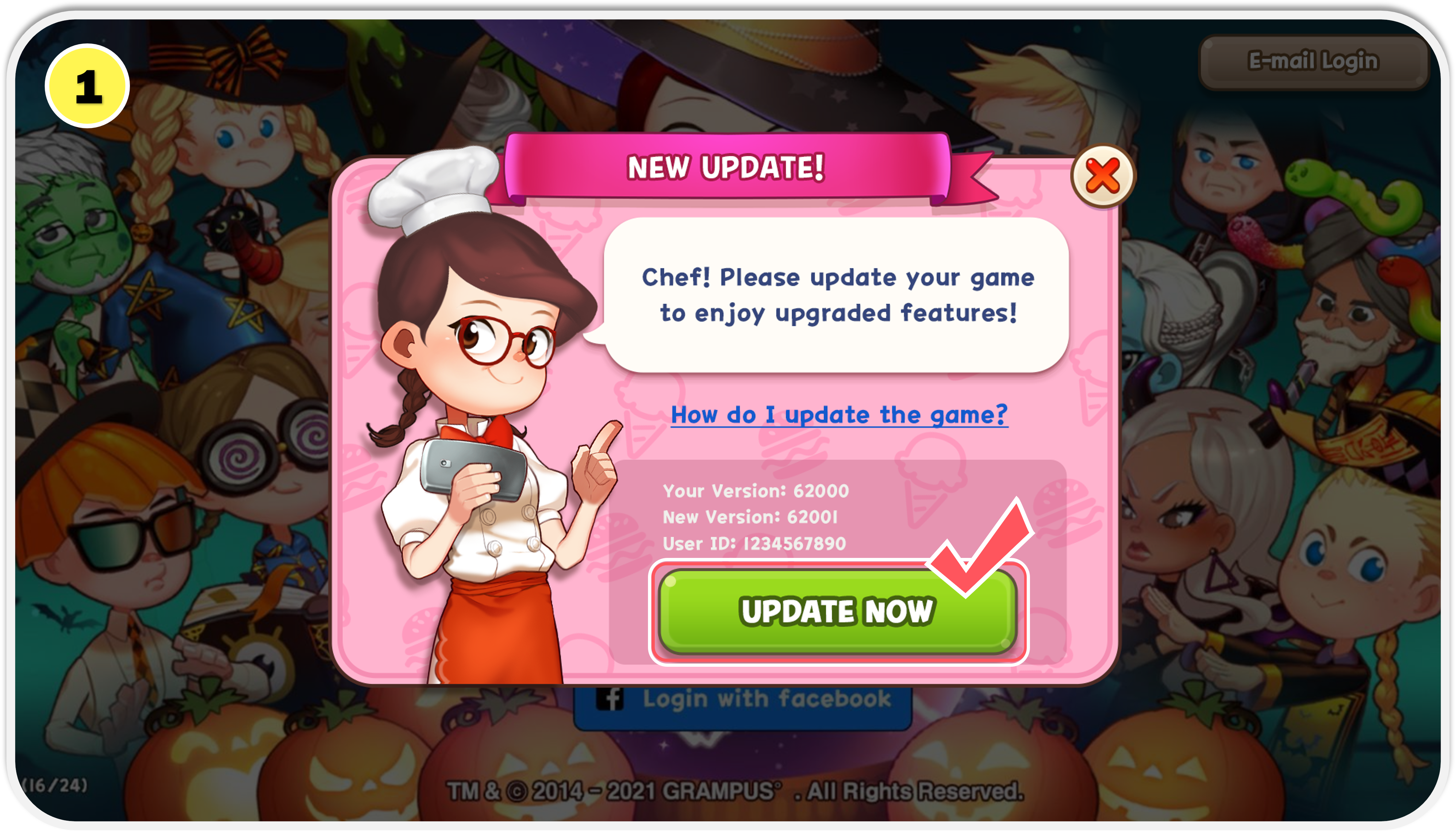
2. Once the update button is displayed, tap on it to proceed with updating the game.
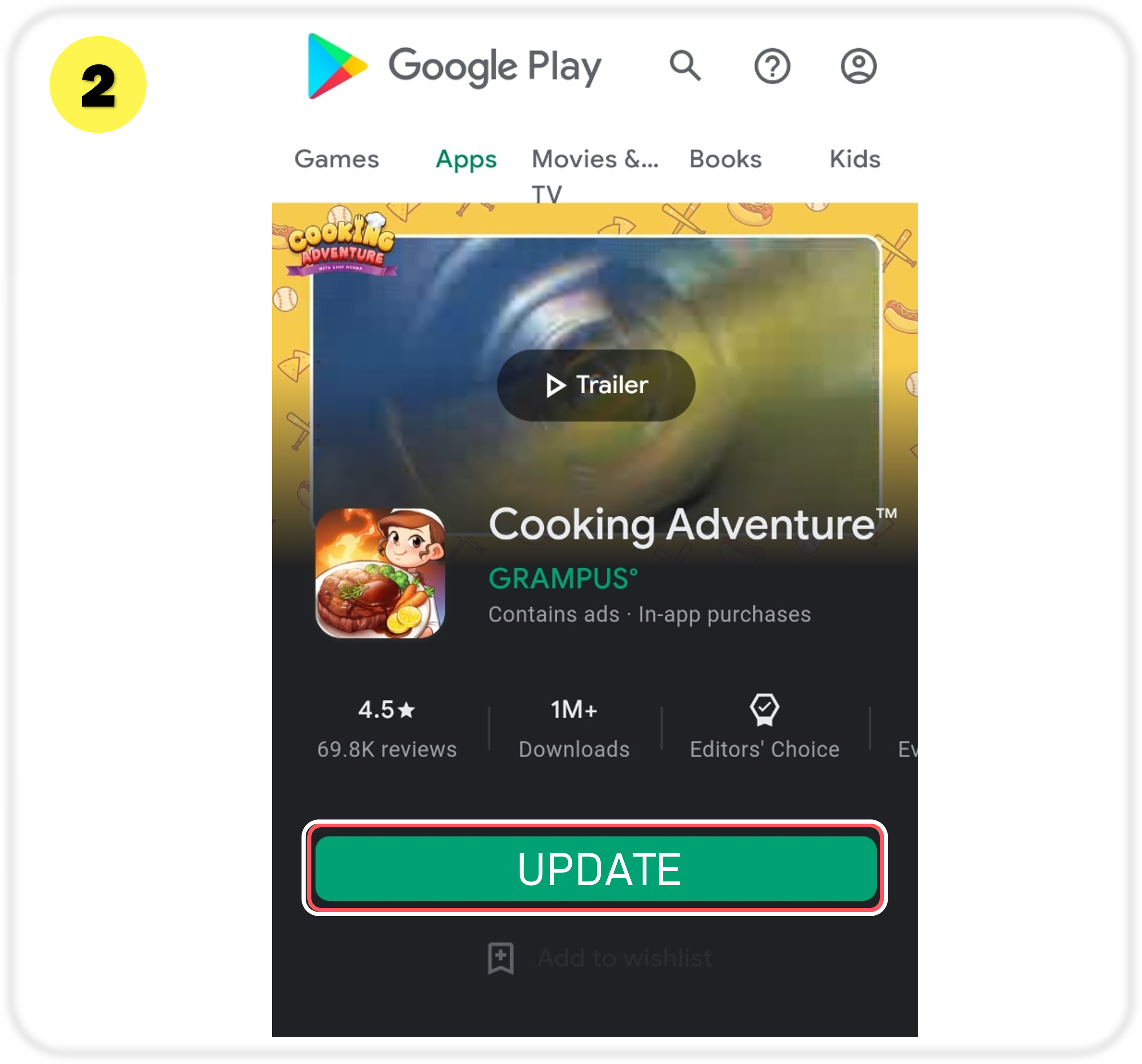
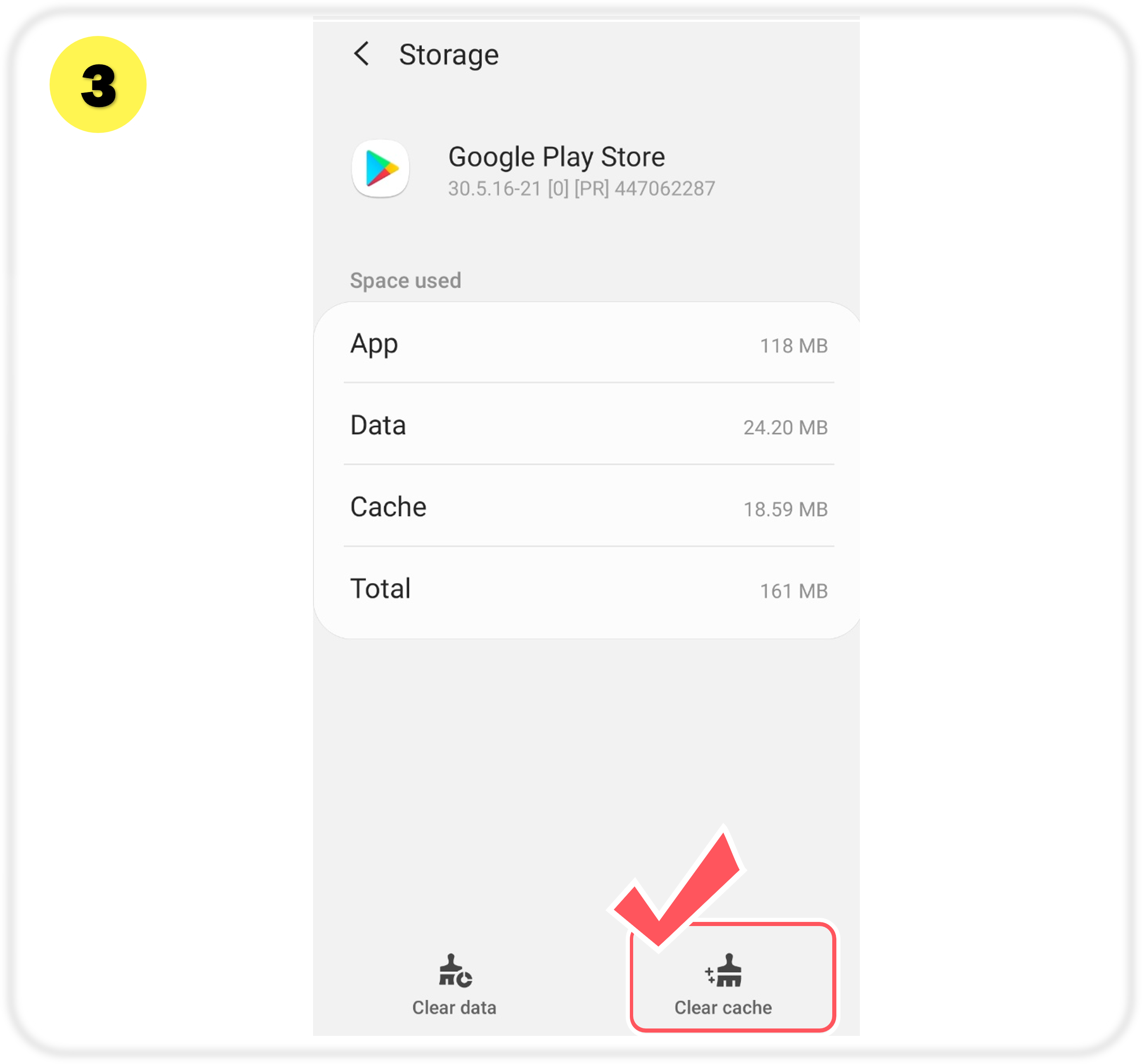
3. If the update button is not displayed, the device storage may be too full. Go to Settings > Apps > Google Play Store and select "Clear cache" under "Storage."
■ For iOS devices:
1. When you open the Cooking Adventure app, an update prompt will pop up. Tap the check button to go to the App Store to update the game.
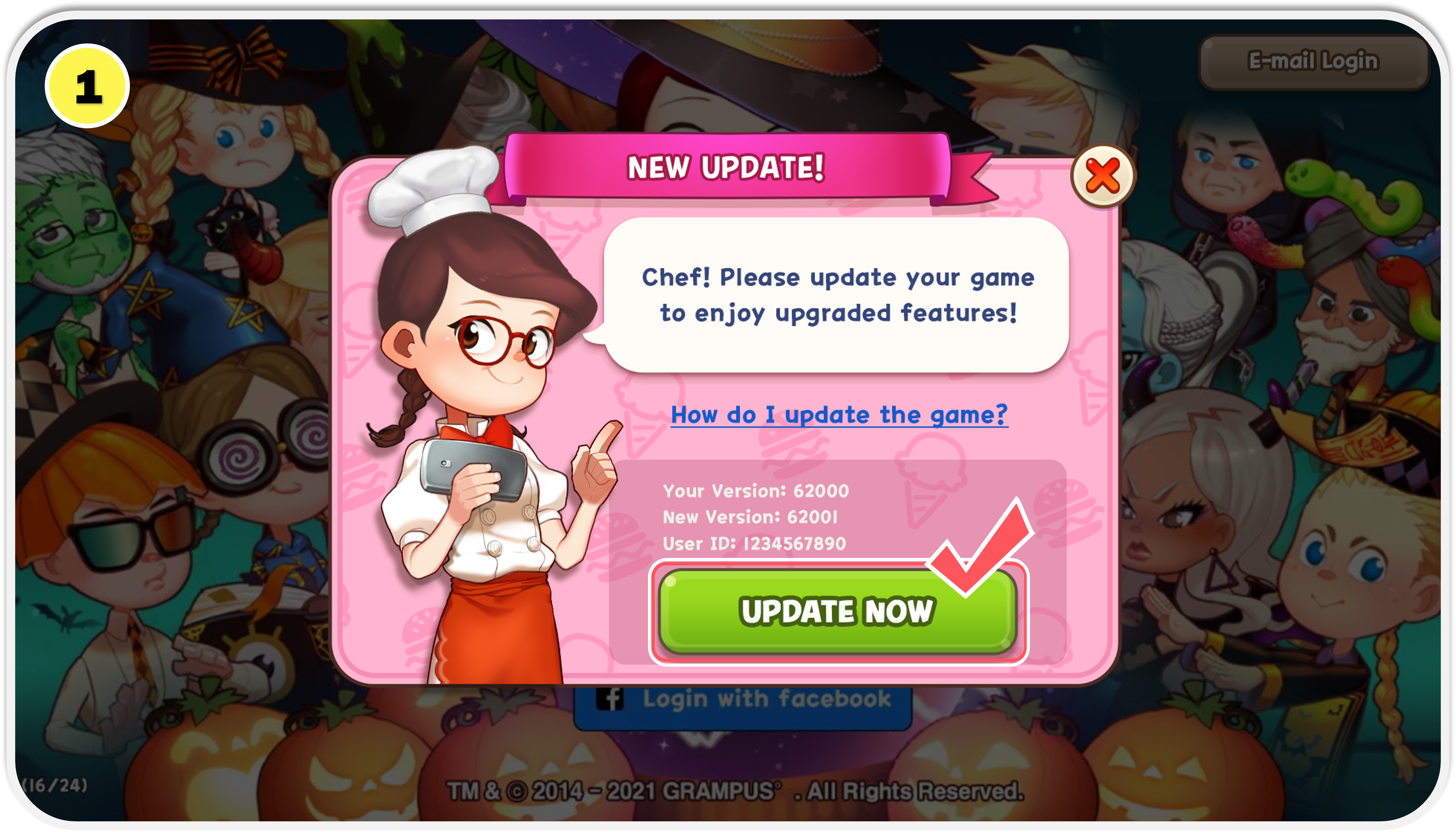
2. Once the update button is displayed, tap on it to proceed with updating the game.
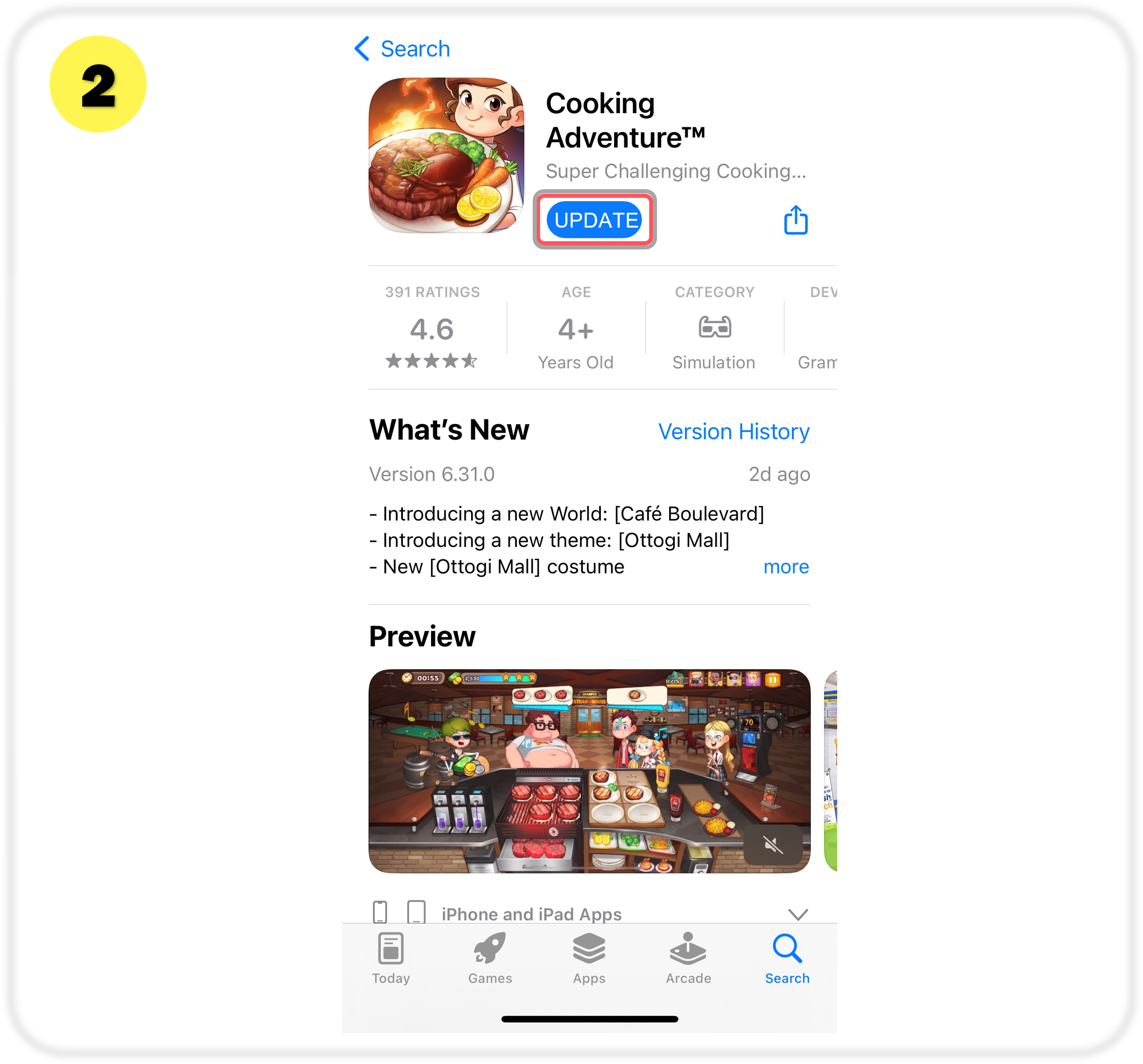
3. If the update button is not displayed, please update the app manually.
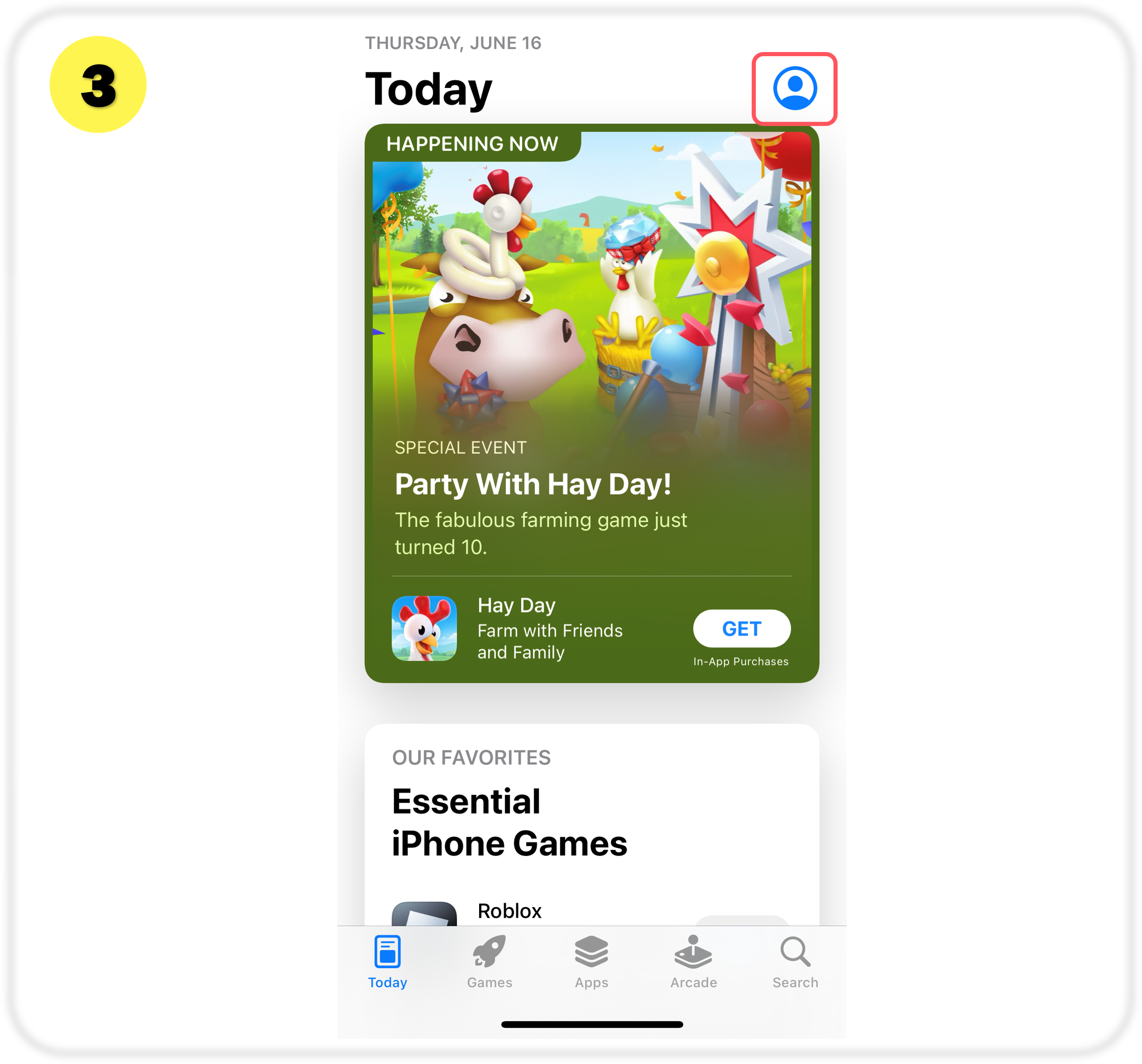
Tap your profile icon on the upper right corner of the App Store.
4. Find Cooking Adventure and proceed with the update.
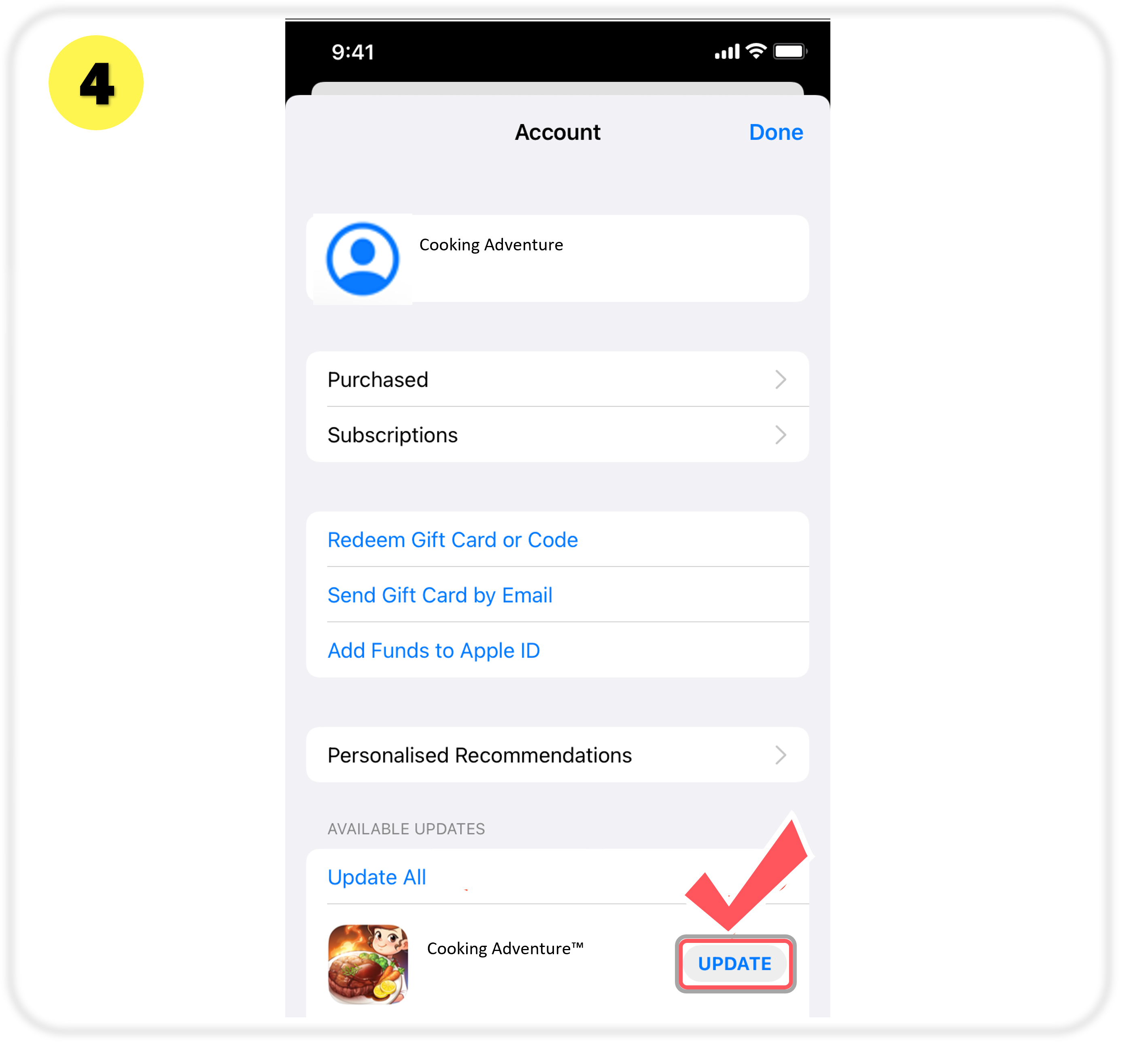
If the displayed button says [Open] instead of [Update], it may showing the [Open] button because the app has already been auto-updated.
Please understand that there may be a delay before the Update button is displayed depending on the App Store.
If these instructions don't work, please contact Support with a detailed description of the problem.